
 Song-saem: From Planner to Developer with AIBlog home →
Deploying a Web App and Adding It to Your Phone’s Home Screen: Vercel and PWA (Build Your Own Scheduler, Part 7)
We put the scheduler, which so far opened only when your PC ran the dev server, on the internet with Vercel and add it to your phone’s home screen. This post covers connecting GitHub, environment variables, Supabase URL settings, the app manifest, adding to the home screen on Android and iPhone, a checklist and troubleshooting. This is the final part of “Build Your Own Scheduler.”

How do you put a web app on the internet and use it on your phone? Push the code to GitHub, connect it to Vercel to get a web address, give each side the Supabase connection details and the deployed address, then add an app manifest and icons and add it to your phone’s home screen. It’s a tool just for you, so there’s no need to list it on the Play Store or App Store. This is the step where the scheduler built through part 6 works on your phone even with your PC off, and it’s part 7, the final part of the “Build Your Own Scheduler” series.
What is deploying?
Until now your computer ran the scheduler. When you put it on the internet, which is called deploying, a server connected to the internet runs it instead and you reach it by its address. Once deployed, you can use it on your phone even with your PC turned off. Here we keep the code on GitHub and connect Vercel to pick it up and deploy it. Later changes go out the same way.
| Step | What we do | Result |
|---|---|---|
| 1 | Push the code to GitHub | Your code is stored online |
| 2 | Connect to Vercel and deploy | You get a web address (https://….vercel.app) |
| 3 | Add environment variables in Vercel | The deployed app connects to Supabase |
| 4 | Tell Supabase the deployed address | Sign-up confirmation and password reset email links work |
| 5 | Add an app manifest and icons | A name and icon appear on the home screen |
| 6 | Add it to your phone’s home screen | Tapping the icon opens it like an app |
1. How do you put the code on GitHub?
GitHub is the “recipe archive” from part 2. Push the scheduler code on your PC to it. A private repository is fine.
Check that `.env.local` is not pushed. It’s the file where you wrote the connection details in part 6. It’s usually listed in the .gitignore exclusion list, but it’s good to check the files that will actually be pushed. If Git commands are unfamiliar, ask your AI coding tool:
“I want to push this project to a private GitHub repository. Check that .env.local and any secrets are excluded, and show me the list of files that will be pushed first.”
What’s private here is the code archive. Who can get into the deployed web app is handled separately by part 6’s login and database rules (RLS).
2. How do you deploy on Vercel?
Create a new project in Vercel and choose the scheduler from your connected GitHub repositories. When it recognizes a Next.js project, the settings are filled in automatically. Add the connection details (environment variables) from the next step before deploying. When the deployment succeeds, you get a .vercel.app address starting with https://. You don’t need to buy a domain at first; you can use this address.
| Good to know | Details |
|---|---|
| Cost | The Hobby plan is free for personal, non-commercial use. If you turn it into a company or paid service, check the plan’s terms again |
| Repository | Private repositories on a personal account can be deployed |
| Public address | Anyone can open the address, which is why part 6’s login and access rules matter |
| Later changes | Pushing code to the designated production branch (usually main) makes Vercel try a new deployment automatically |

3. Where do the environment variables go?
On your PC, the app read .env.local to connect to Supabase. Since that file is excluded from GitHub, you need to give Vercel the connection details separately. Add these two values under Environment Variables in the project settings.
| Name | Value |
|---|---|
| NEXT_PUBLIC_SUPABASE_URL | Your Supabase project URL |
| NEXT_PUBLIC_SUPABASE_PUBLISHABLE_KEY | Your public publishable key |
Make sure the names match the ones your code used in part 6, and set them for the Production environment you’ll actually use. This connection doesn’t use the secret key.
After adding or changing environment variables, you need a new deployment for them to apply. Changing the settings and refreshing the existing address isn’t enough. If you get stuck, show AI the variable names and the error screen, not the key values.
4. What do you need to tell Supabase?
Even if the app opens, check that the links in sign-up confirmation and password reset emails work. In Supabase’s auth settings (Auth → URL Configuration), check two things.
| Setting | Meaning | Value |
|---|---|---|
| Site URL | The base address used to build email links | If it still says http://localhost:3000, change it to your deployed address |
| Redirect URLs | Addresses allowed to return to during login | Check the return paths your code actually uses and register them. To keep testing on your PC, also allow the development address (e.g. http://localhost:3000/**) |
Here’s why the Site URL can’t stay as is: on a phone, localhost points to the phone itself, not to your development PC. For Redirect URLs, rather than blindly adding only the deployed address, it’s safer to register exactly the paths production needs. If you’re not sure which paths, ask AI:
“Check the return paths my login and email confirmation code uses. Tell me separately which addresses go in Supabase’s Site URL and Redirect URLs.”
5. What makes it look like an app on your home screen?
A web app can be installed on the home screen and used like an app. A web app with this capability is called a PWA (Progressive Web App). Whether it’s added as a simple shortcut or installed to open like an app can vary by device and settings.
In Next.js, put the app information in app/manifest.ts.
| Field | Meaning | Scheduler example |
|---|---|---|
| name | Full app name | My Scheduler |
| short_name | Short name under the icon | Scheduler |
| start_url | Screen opened from the icon | /today |
| display | How it opens | standalone (its own window, no address bar) |
| icons | Icon images | 192×192 and 512×512 PNG |
A simple calendar shape that’s recognizable at small sizes is enough for the icon. Prepare 192×192 and 512×512 PNGs plus an iPhone icon, and check that the actual file paths match the settings.
Vercel addresses are served over HTTPS, so once the app information and icons are in place, confirm installation on a real phone. Adding it to the home screen doesn’t make saving and viewing work without the internet; this scheduler works connected to Supabase.
6. How do you hand it to AI one step at a time?
If doing all of the above at once feels hard, try this request.
“I want to deploy the scheduler I built through part 6 and use it from my phone’s home screen. I’m new to development. 1. First list what’s needed to deploy while keeping the existing features. 2. Check which files go to GitHub and which are excluded. 3. Explain how to connect Vercel and the Production environment variable names. Don’t show key values in your answer. 4. Tell me the Supabase Site URL and Redirect URLs that fit my current auth code. 5. Prepare the manifest and icons. The start screen is /today, and it should open like an app after installing. 6. Go one step at a time and tell me what to check at each step.”
When you show settings screens, cover passwords and secret keys. Even if you use a tool where AI can do the work directly, don’t stop at “the deployment succeeded”; check the real address and your phone.
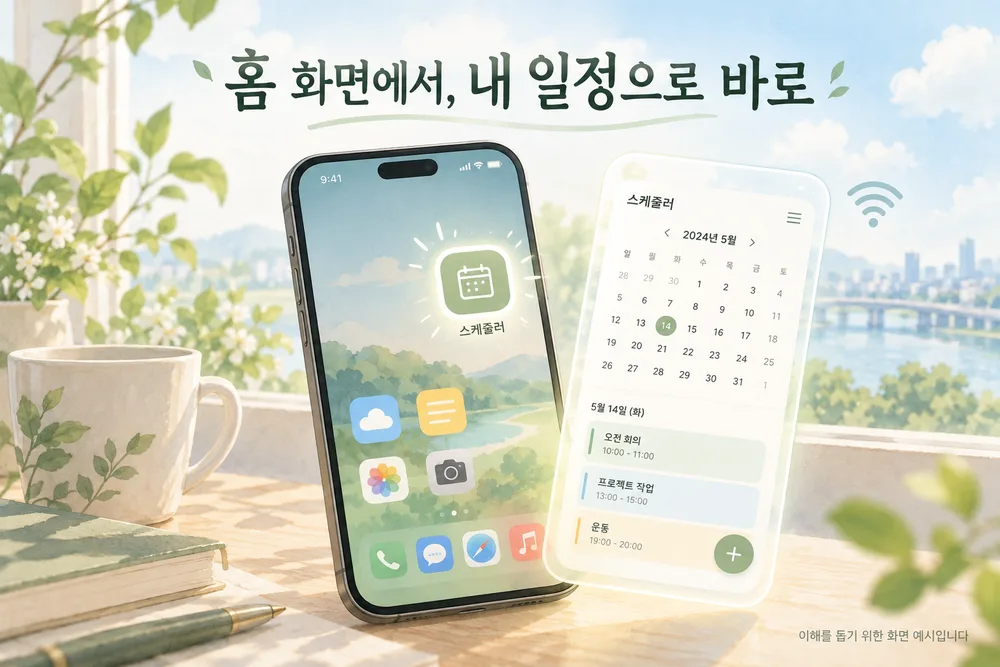
7. How do you add it to your phone’s home screen?
First open the deployed address in your phone’s browser and check that login and viewing schedules work.
| Phone | How |
|---|---|
| Android (Chrome) | Open the deployed address → More menu (⋮) → Install and create shortcut. On some devices it may show as “Install app” or “Add to home screen” |
| iPhone (Safari) | Open the deployed address → Share menu → Add to Home Screen. If you see “Open as Web App,” turn it on before adding |
Button positions and names can differ by version. If you can’t find the menu, take a screenshot and ask AI, “Where do I tap to add this to the home screen on this device?”
Tap the new icon and check that it opens like an app. Login state can differ from the browser, so log in again if needed. Add a test schedule on your PC and load it on your phone; if it doesn’t appear right away, refresh. Two devices sharing the same database and changes appearing automatically in real time are separate features.
8. How do you check it’s all working?
The final check is real use.
| What to check | Normal result |
|---|---|
| Saving | Schedules you add and edit stay after a refresh |
| Logout | After logging out, you can’t get into your schedule screen |
| Another account | A test account can’t view or change your schedules |
| PC and phone | Schedules added on PC show on the phone (refresh if needed) |
| Home screen | The icon and name appear and it opens like an app |
| Code changes | After pushing to the production branch and a successful deployment, the new version appears |
9. What do you check first when something goes wrong?
| Symptom | Look first at |
|---|---|
| Connection error at the deployed address | The Vercel environment variable names and values, and whether you redeployed after changing them |
| Email links go to localhost | Supabase’s Site URL |
| After login you land on the wrong address | Supabase’s Redirect URLs and the return paths your code uses |
| Your changes don’t appear | Whether the code reached the production branch and whether the deployment succeeded |
| Won’t open after a break | Whether the free Supabase project was paused (low activity for 7 days pauses it; restart from the dashboard) |
A failed deployment may mean new changes aren’t live, so after pushing code, check the result in Vercel too.
What did we build in seven parts?
| Part | What we did |
|---|---|
| Part 1 | Chose a language |
| Part 2 | Learned the tools |
| Part 3 | Planned what I need |
| Part 4 | Looked at the code structure |
| Part 5 | Built the screens |
| Part 6 | Connected saving and login |
| Part 7 | Put it online and used it on a phone |
Not everyone needs to finish the same scheduler. Some people mainly track school assignments; others want to organize work tasks or personal appointments. As you use it, you may want recurring events, categories or priorities. When that happens, write the feature into your part 3 brief and first check with AI what to change in the existing structure. Add one thing at a time, and check that what already worked still works.

In short
- Once deployed, an internet server runs the scheduler, so you can use it on your phone with your PC off.
- Don’t push
.env.localto GitHub; put the same connection details in Vercel’s Production environment variables and redeploy after changes. - Change Supabase’s Site URL to your deployed address, and register the return paths your code actually uses in Redirect URLs.
- Add a manifest and icons and add it to the home screen from the HTTPS address. It still needs an internet connection.
- Check by actually using it: logout, another account, PC and phone.
What we practiced in this series is deciding what to build, understanding the structure, and handing it to AI step by step while checking the results. Once you’re used to that process, you can build other small tools too. Building the business system FROX at ONE-PEX is, in the end, this same process repeated on a larger scale.
Thank you for reading “Build Your Own Scheduler” all the way through.
Sources (checked 2026-10-21)
- Vercel docs, Deploying Git repositories
- Vercel docs, Environment variables
- Vercel docs, Hobby plan
- Supabase docs, Redirect URLs
- Next.js docs, Progressive Web Apps
- Chrome Help, Use web apps on Android
- Supabase docs, Free project pausing
Related reading: Part 6: Connecting saving and login · Part 1: Which language should you build a web app in? · When AI Seems to Ignore Your Instructions

A software planner who became a developer after two years of working with AI five to twelve hours a day. Today I build FROX, an AI-powered business system, at ONE-PEX.
More posts
- What Can You Build with AI?Orders in KakaoTalk, Stock in Excel, Receivables in a Notebook: Changing Messenger Orders Only the Owner Understands (Food Supplier, Part 1)
- What Can You Build with AI?I Fixed My TWA App, So Why Didn't It Change? What I Learned from the War with Caching
- What Can You Build with AI?Details Matter: Splitting 3D Characters and Vehicles So They Can Move (Building Road Voca 2, Part 5)