
 Song-saem: From Planner to Developer with AIBlog home →
How to Write a Web App Brief: Five Things to Decide Before Code (Build Your Own Scheduler, Part 3)
Tell AI only "build me a scheduler" and whatever you leave unexplained gets filled in by its judgment. Decide what in your life to manage, what you need now versus later, the screens and the data, hand over a one-page brief, and have AI ask questions first. Includes a brief you can adapt.

What should you do before writing code for a web app? Plan what you are building. Tell AI only "build me a scheduler," and it decides the screens and features for you. The result may look fine and still not fit your life. Decide what to manage, what you need now, the screens and the data, then hand over a one-page brief, and you get much closer to the app you want. This is part 3 of the "Build Your Own Scheduler" series.
Why plan before code?
Before I became a developer, I was a software planner. One lesson from those years matters even more with AI: whatever you don’t explain gets filled in by the builder’s judgment. That was true with human developers, and it is true with AI. Planning means telling it specifically what you want.
Step 1: What in your life will you manage?
This is not a generic scheduler for everyone. It is your own scheduler, shaped around your life: school, work or personal matters. For a student, that might be assignments and exam prep; for an office worker, meetings and deadlines; personally, workouts or family plans. Managing several together is fine too.
First, write down when you will use it. In the morning you sort out today’s tasks on your PC; out and about, you check your phone and mark things done; on weekends, you add next week’s plans.
Then think about what bothers you. Do you often miss assignment deadlines? Do work and personal plans clash? Are you unsure what to do first today? That is where your own features come from. This example starts as something only you use, with the same schedule on PC and phone.
Step 2: What you need now versus later
Trying to build everything at once makes it hard to finish. Build a first version with the basics, then add what you need as you use it.
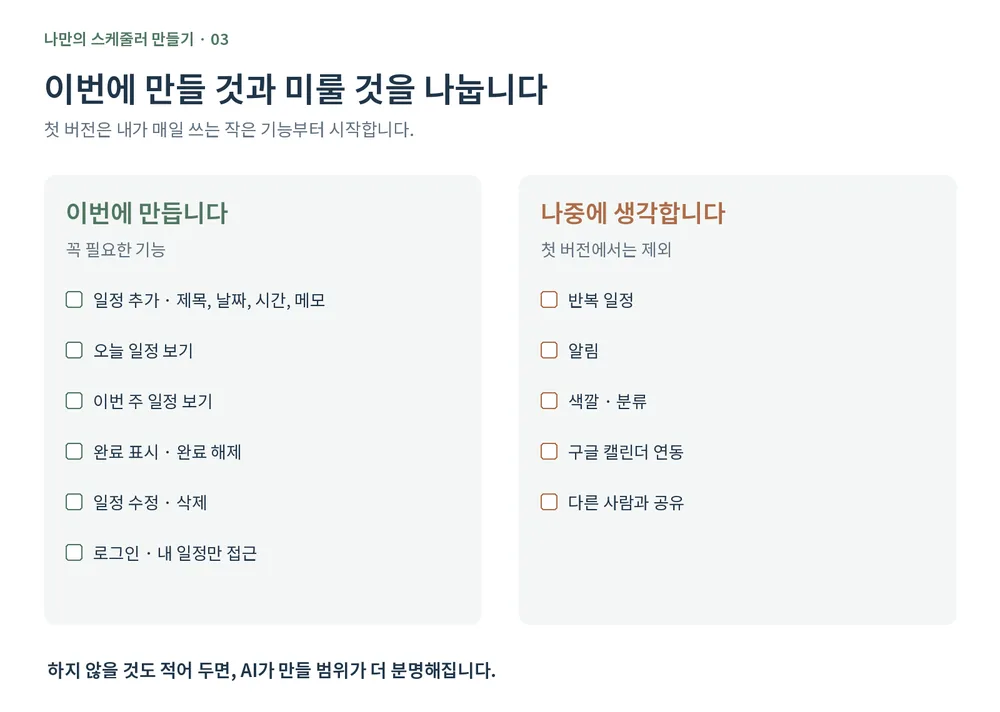
| Basic features (build now) | Examples to add as you go |
|---|---|
| Add a task: title, date, time, memo | Categories by subject or project |
| View today’s tasks | Priority |
| View this week’s tasks | Repeating tasks |
| Mark done and undo | Reminders |
| Edit and delete tasks | Study or workout tracking |
| Login and access to only my tasks | Google Calendar sync |
This split differs by person. A student who needs subject categories can include them in the first version. If you only want a to-do list without times, cut the inputs further. This example is a starting point, not the one right answer.
Start small, but leave room to grow
Keeping features small doesn’t mean keeping the app simple forever. The aim is a structure you can keep adding to as you use it. If the task card’s look, saving tasks and marking them done live in separate code by role, it is easier to find what to change. When you later add priority, you can see which data and screens need to change.
We ask AI the same way:
"Build only the basic features at first, but split screen components and data-handling code by role so new features are easy to add later. Don’t make it needlessly complex from the start."
New features may still require changing the data structure or existing code. The point isn’t that features attach by themselves; it is to make the app easy to understand and fix later.
Step 3: Decide the screens
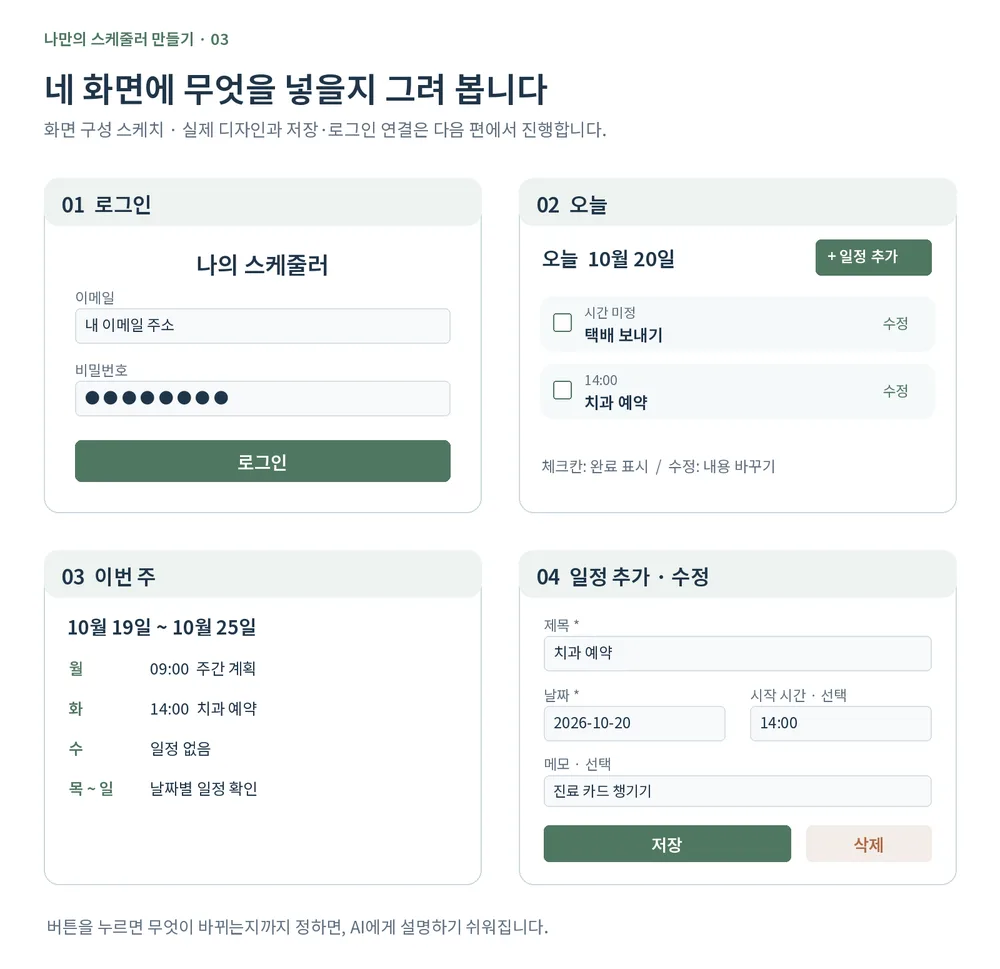
The first version has four screens:
- Login: the entrance to your tasks.
- Today: the first screen after login. It shows today’s tasks; a checkbox toggles each one done.
- This week: tasks by date from Monday to Sunday.
- Add/edit task: enter a title, date, time and memo, then save. Existing tasks can be edited or deleted.
Decide what buttons do, too. Here, tapping a checkbox toggles done, and tapping an edit button lets you change the content. Note in a line or two what each screen shows and what you can tap. Drawing four boxes on paper works; it doesn’t need to look pretty.
Step 4: Decide what to save
| Field | Example | Required? |
|---|---|---|
| Title | Dentist appointment | Required |
| Date | 2026-10-20 | Required |
| Start time | 14:00 | Optional |
| Memo | Bring the patient card | Optional |
| Done | Done / not done | Required |
| User | The logged-in user’s ID | Required |
Adding your own features changes what you save. Managing by subject needs a subject field; showing priority needs a priority value.
The user field matters. Each task must be linked to its owner, with permissions set so logged-in users can reach only their own tasks. The app will save this value, so you never type it yourself. You don’t need to know database design yet: write down what you want to keep, and check the gaps together with AI.
Step 5: A one-page brief for AI
Gather what you decided on one page, changing the tasks and features to fit you:
My Scheduler Brief - Goal: my own web app for whichever of school, work and personal plans I need; the same schedule on PC and phone. - User: only me. Selling or sharing with others is out of scope this time. - Tech: TypeScript, Next.js, Supabase, Vercel. Code is kept on GitHub. - Screens: Login / Today / This week / Add and edit task - Basic features: add tasks, view today and this week, mark done and undo, edit and delete, login - Data: title, date, start time, memo, done, user ID. Start time and memo are optional. - Access: logged-in users can view and change only their own tasks. - Later: categories by subject or project, priority, repeating tasks, reminders, etc., chosen as I use it. - Structure: split screen components and data-handling code by role; easy to extend, but not needlessly complex. - Screen principles: easy to read on a phone, large text, few buttons - Order: understand the code’s basic structure → build screens → connect saving and login → put it online and use it on my phone
Hand over the brief and have AI ask first
Don’t let it build right away; have it ask questions first. Add this below the brief:
"I’m a beginner developer. Read this brief and, before building, ask me about anything missing or unclear, especially features I should decide to fit my life. Don’t ask too much at once; ask two or three of the most important questions at a time. After I answer, show me the updated brief. For now, only organize the plan and don’t write any code yet."
When AI asks "Where should tasks without a time appear?", that is a gap you missed. It may also ask, "Do you need to separate school and personal plans?" These aren’t questions with a right answer; just say what works for you. If you’re not sure, ask it to "recommend the simplest option and explain why." When I build FROX, I also take these questions first and only then start building.

Today isn’t about writing a perfect brief. Writing down what you need and refining it through conversation with AI is enough. When you need a new feature while using it, update the brief too.
In short
- Whatever you don’t explain gets filled in by AI’s judgment, so planning comes before code.
- Decide what to manage, what you need now versus later, the screens and the data. Start small, but ask for a structure that is easy to extend.
- Hand over a one-page brief and have AI ask questions first.
At ONE-PEX, we follow the same order when building the business system FROX: decide the screens and data first, take AI’s questions, then write the code.
Next (Part 4): Before building, we look at the basic structure of web app code: what goes in the project folder, where the screen code and saving code live, and in what order things happen when you tap a button. The goal isn’t to memorize code but to have a map for seeing where things happen in what AI builds.
Related reading: Build Your Own Scheduler, Part 1: Which language should you build a web app in? · Part 2: The tools you need to build a web app

A software planner who became a developer after two years of working with AI five to twelve hours a day. Today I build FROX, an AI-powered business system, at ONE-PEX.
More posts
- What Can You Build with AI?Orders in KakaoTalk, Stock in Excel, Receivables in a Notebook: Changing Messenger Orders Only the Owner Understands (Food Supplier, Part 1)
- What Can You Build with AI?I Fixed My TWA App, So Why Didn't It Change? What I Learned from the War with Caching
- What Can You Build with AI?Details Matter: Splitting 3D Characters and Vehicles So They Can Move (Building Road Voca 2, Part 5)